Shopify Fulfilment Integration
THG Fulfil’s Shopify integration provides order fulfillment through our THG Connect platform. This integration enables automatic order processing, inventory synchronization, and product creation directly within your Shopify store.
Onboarding Process
Section titled “Onboarding Process”Platform Invitation
Section titled “Platform Invitation”See the platform documentation for invitation steps.
Shopify App Installation
Section titled “Shopify App Installation”The app installation process connects your Shopify store with THG Connect:
- Installation Link: THG will provide a dedicated app installation link for your organization.
- Authorization Flow:
- Click the installation link to be redirected to the THG Connect portal
- You’ll then be redirected to Shopify to select the store for app installation
- Finally, return to the THG Connect Portal to select your organization and partner
- Setup Completion: Follow the guided setup process until completion, where you should see three sections with checkmarks confirming successful installation.
- Verification: Both THG Connect and Shopify are now integrated and ready for product and order configuration.
Enabling Integration for Orders
Section titled “Enabling Integration for Orders”To enable THG Connect to receive and process orders, orders must be assigned to the correct location and have fulfillment requested:
Method 1: Global Fulfillment Setting
Section titled “Method 1: Global Fulfillment Setting”Configure Shopify’s global fulfillment behavior:
- Navigate to Settings > General in your Shopify admin
- Under “After an order has been paid,” select:
- “Automatically fulfill the order’s line items” ✓
“Automatically fulfill only the gift cards of the order”“Don’t fulfill any of the order’s line items automatically”
Note: This setting affects all locations. If you have other fulfillment providers requiring unfulfilled orders, use Method 2.
Method 2: Shopify Workflows
Section titled “Method 2: Shopify Workflows”Set up a Shopify workflow for more granular control:
- Create a workflow that moves orders to the “requested” fulfillment state
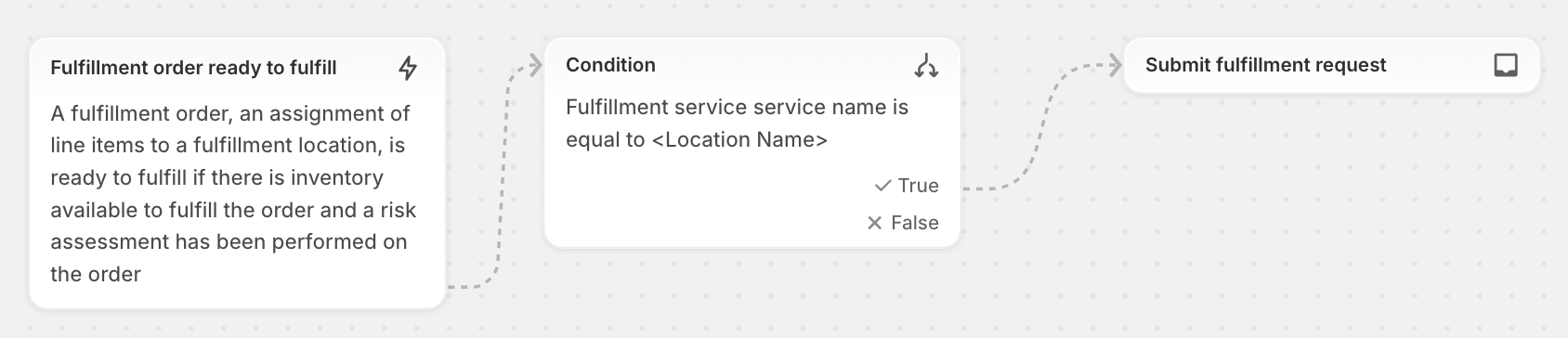
- This method allows for additional features such as:
- Grace periods between order creation and THG Connect processing

Shipping Profile Configuration
Section titled “Shipping Profile Configuration”- Delivery Options Mapping: Map each delivery option in the shipping profile you intend to add to THG Connect’s location to a THG delivery type (see Delivery Options Mapping)
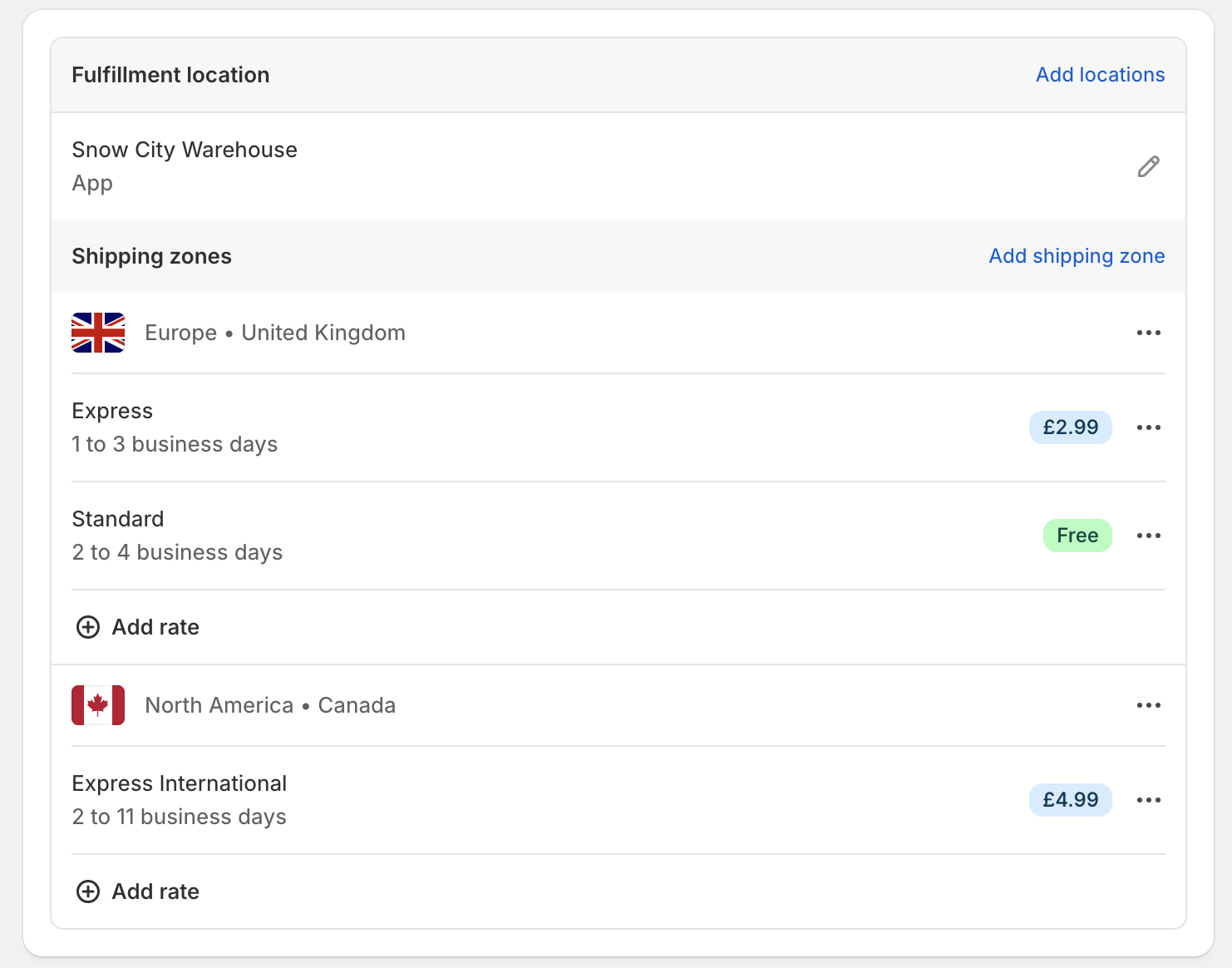
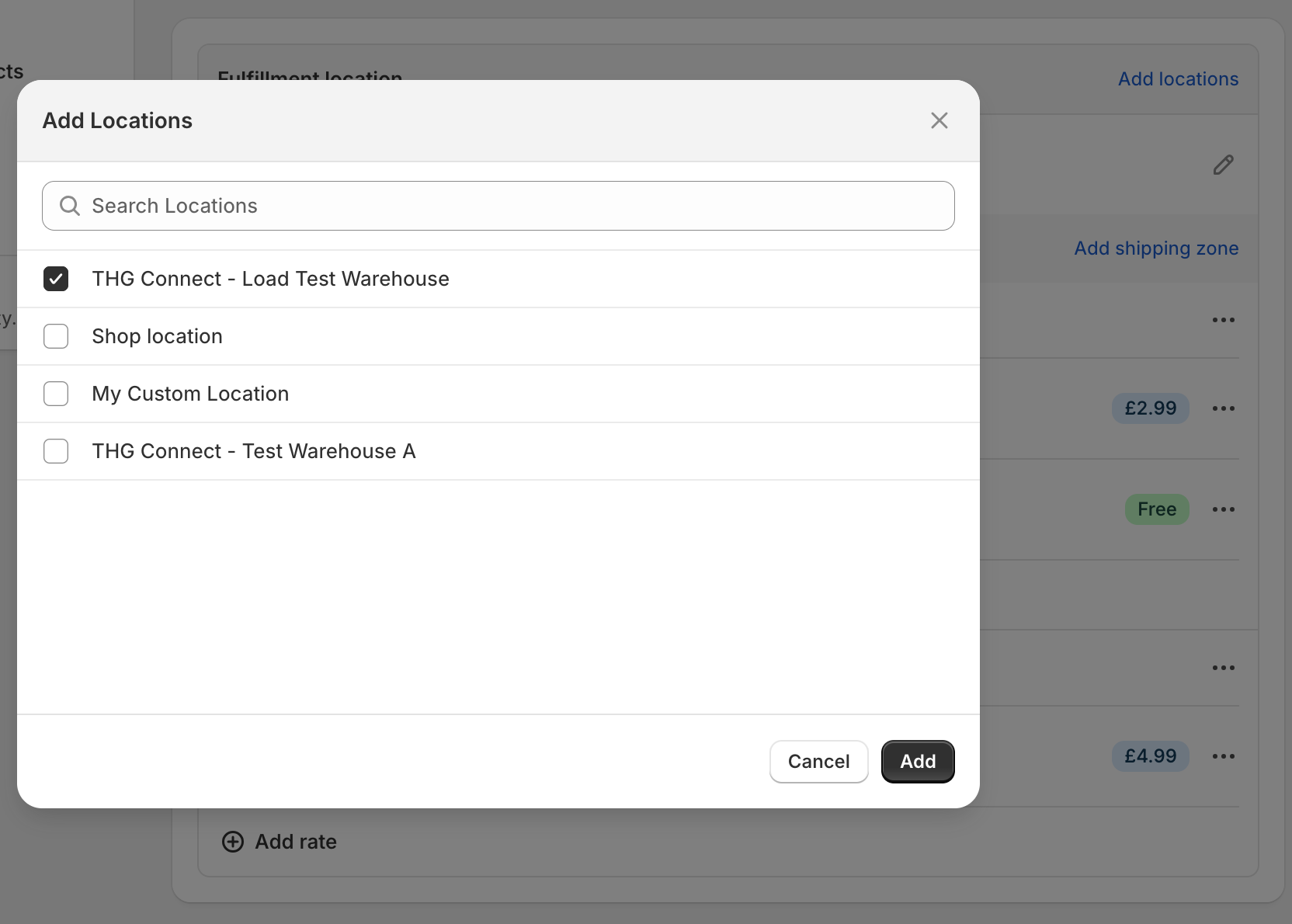
- Location Assignment: Add THG Connect location(s) to your shipping profile and configure order routing rules
- Go Live: Once configured, orders will begin flowing to THG Connect (provided there is stock available for the products)
Delivery Options Mapping
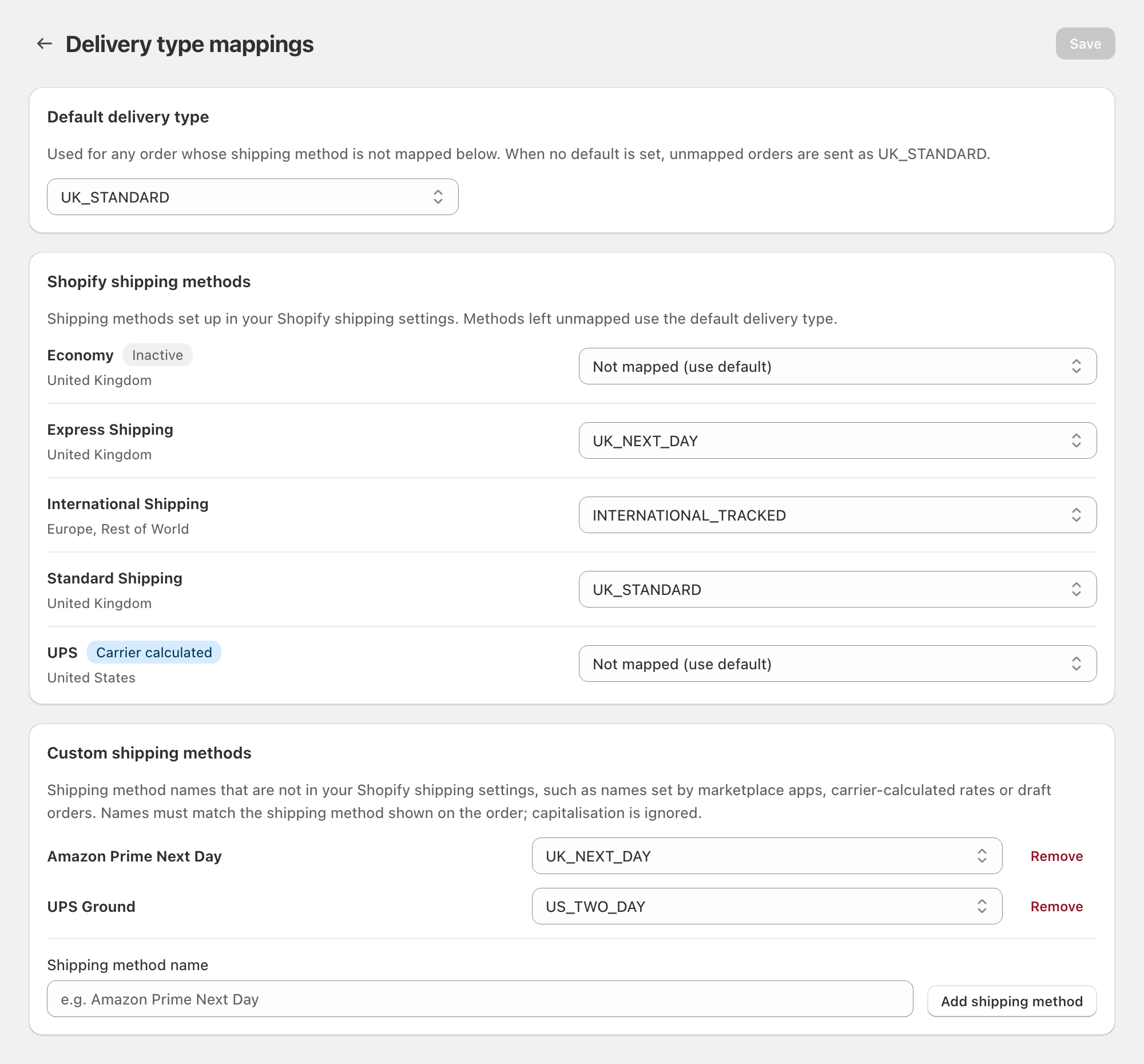
Section titled “Delivery Options Mapping”When customers check out, they choose a delivery option (for example “Standard Shipping” or “Express”). THG Connect uses your delivery options mapping to decide which THG delivery type each order is sent with. You manage the mapping yourself from the Delivery type mappings page in the THG Connect Shopify app.
Opening the Delivery Type Mappings Page
Section titled “Opening the Delivery Type Mappings Page”- Prerequisites: You must be logged in to THG Connect in the app and your store must be connected (see Shopify App Installation)
- Open the Page: Select Delivery type mappings in the app menu, or Manage delivery type mappings on the Dashboard
Default Delivery Type
Section titled “Default Delivery Type”The default delivery type is used for any order whose delivery option is not mapped. If no default is set, unmapped orders are sent as UK_STANDARD.
Shopify Shipping Methods
Section titled “Shopify Shipping Methods”The page lists the delivery options from Settings > Shipping and delivery in your Shopify admin automatically, so you don’t need to enter them yourself. Delivery options added in Shopify appear the next time you open the page.
- Map an Option: Select a delivery type for the option, or leave it as Not mapped (use default)
- Inactive: The option is currently switched off in Shopify
- Carrier calculated: The rate comes from a carrier app, so the name shown on orders may be different. Add those names under Custom Shipping Methods
Custom Shipping Methods
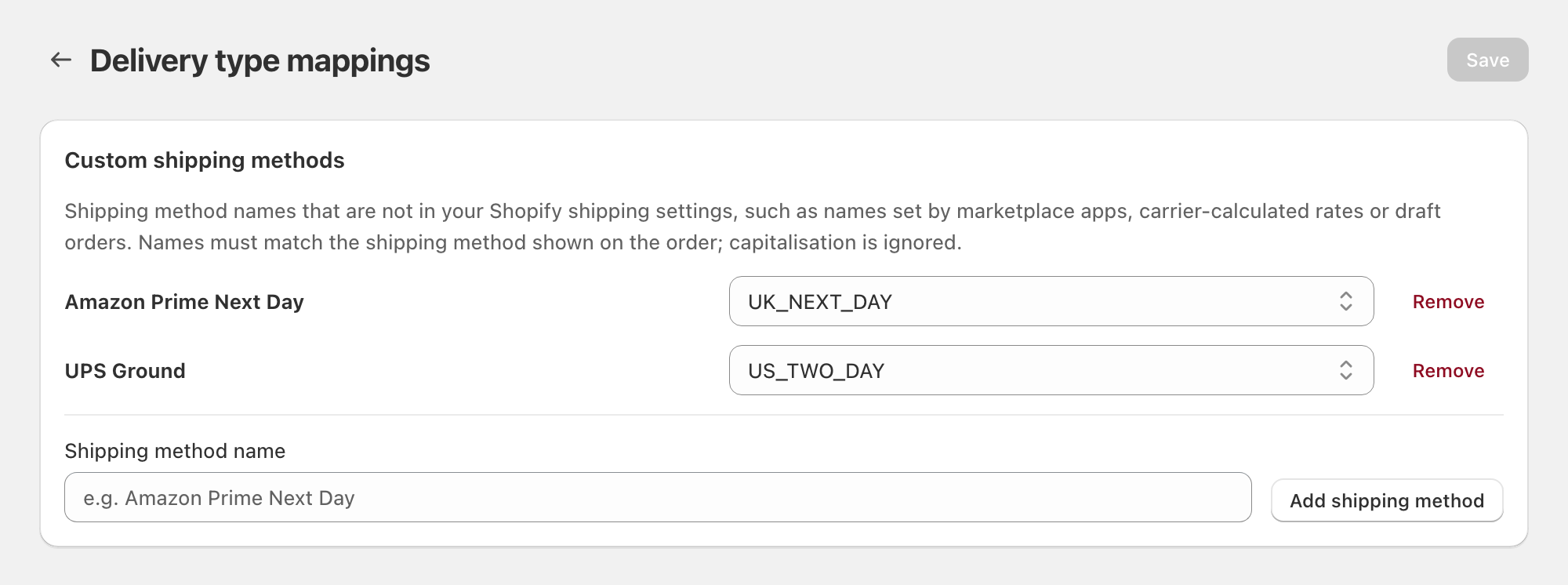
Section titled “Custom Shipping Methods”Some orders have a delivery option that is not in your Shopify shipping settings, for example orders from marketplace apps such as Amazon, draft orders with a custom shipping rate, or carrier-calculated rates.
- Add: Enter the name exactly as it appears on the order and select Add shipping method (capitalisation is ignored)
- Map: Select the delivery type for the new method
- Remove: Select Remove to delete a custom method you no longer need
Note: default is a reserved name and cannot be added as a custom method. Use the Default Delivery Type instead.
Supported Delivery Types
Section titled “Supported Delivery Types”UK_STANDARD: Standard delivery within the UKUK_NEXT_DAY: Next day delivery within the UKUK_ECO: Economy delivery within the UKINTERNATIONAL_TRACKED: International tracked deliveryINTERNATIONAL_STANDARD: International standard deliveryWORLD_WIDE_EXPRESS: Worldwide express deliveryUS_NEXT_DAY: Next day delivery within the USUSPS: US Postal Service deliveryUS_TWO_DAY: Two day delivery within the US
The Delivery type mappings page always shows the current list of supported delivery types.
Saving Changes
Section titled “Saving Changes”- Save: Select Save at the top of the page
- Apply: Changes apply to new fulfillment requests. Orders already sent to THG Connect keep their delivery type
How the Delivery Type is Chosen
Section titled “How the Delivery Type is Chosen”- Mapped Option: The delivery type mapped to the order’s delivery option
- Default: Otherwise, the Default Delivery Type
- Fallback: Otherwise,
UK_STANDARD
Product Setup for Consumption
Section titled “Product Setup for Consumption”Product configuration must be completed after the Shopify app installation but before stock is inbounded to the warehouse.
Metafields Configuration
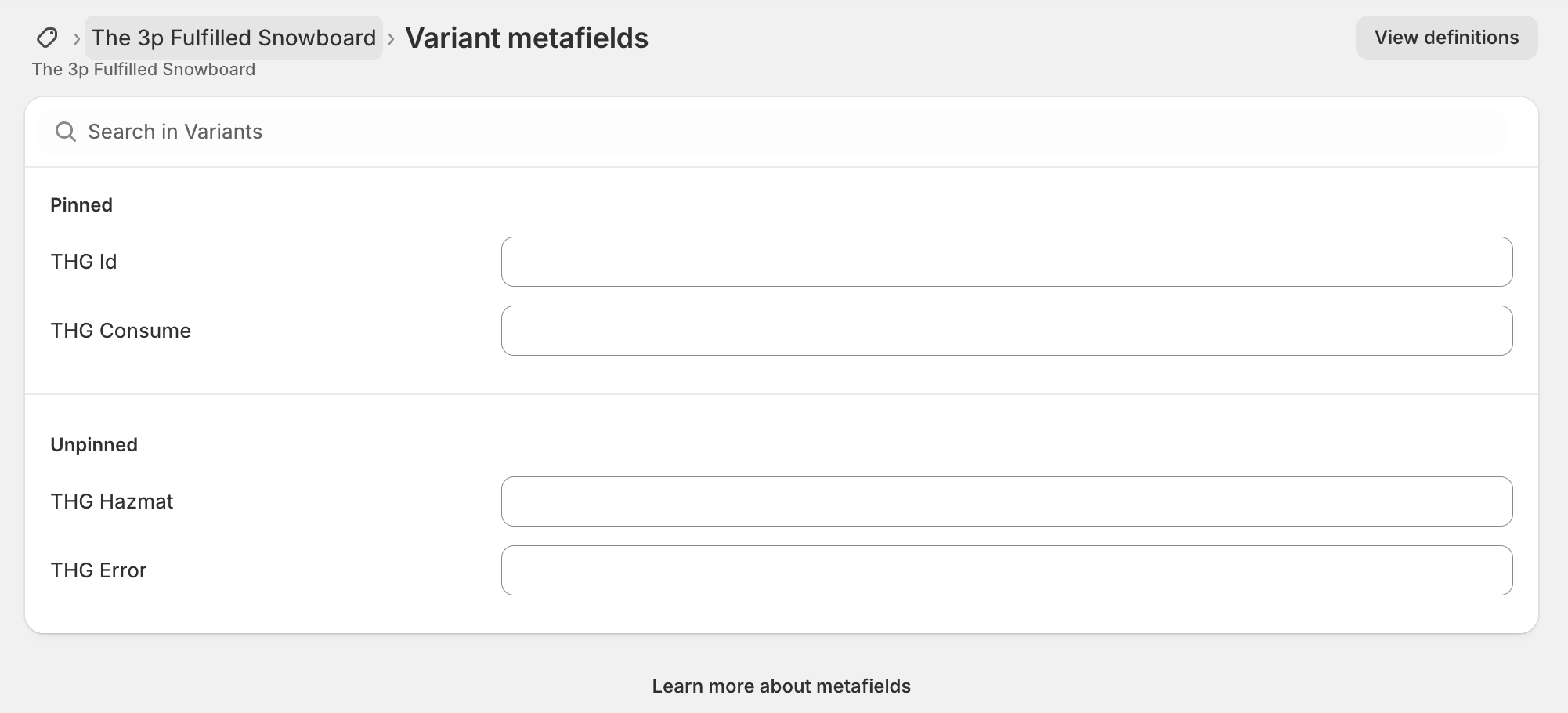
Section titled “Metafields Configuration”During onboarding, THG Connect creates the following metafields on your ProductVariants:
thg.consume: Boolean field to enable/disable product consumption (editable)thg.hazmat: Boolean field for hazardous materials classification (editable)thg.classification: List of product classifications for special handling (editable — see Product Classification)thg.errors: Displays any issues with product consumption (read-only)thg.id: Stores the THG product ID for reference (read-only)
Required Product Data
Section titled “Required Product Data”Each product variant must have the following information configured in Shopify:
Inventory Section
Section titled “Inventory Section”- SKU: Unique product identifier
- Barcode: Product barcode for warehouse scanning
Shipping Section
Section titled “Shipping Section”- Country of Origin: Manufacturing country for customs
- HS Code: Harmonized System code for international shipping
Additional Requirements
Section titled “Additional Requirements”- Batch Expiry Controlled: Use
thg.collect_expiryand/orthg.batch_controlledmetafields to flag this product variant as requiring batch numbers and/or expiry to be recorded. - Hazmat Classification: Set in the
thg.hazmatmetafield for hazardous products - Product Classification: Set in the
thg.classificationmetafield for products requiring special handling (see Product Classification)
Product Classification
Section titled “Product Classification”The thg.classification metafield is a list that describes special handling characteristics of a product variant. It accepts one or more of the following values:
FRAGILE: Indicates the product requires careful handling due to its fragile nature.LIQUID: Indicates the product is a liquid.CONSUMABLE: Indicates the product is a packaging consumable — a disposable material used during packing and shipping that is continuously replenished and not intended for long-term reuse. Primary examples are packaging boxes and bags.
If the product variant is none of the above, the field can be left empty.
Product Consumption Process
Section titled “Product Consumption Process”- Data Validation: Ensure all required product data is complete
- Enable Consumption: Set the
thg.consumemetafield totrueand save the variant
- Product Sync: The product will be pushed to THG Connect and appear in the portal within a few minutes
- Approval Process:
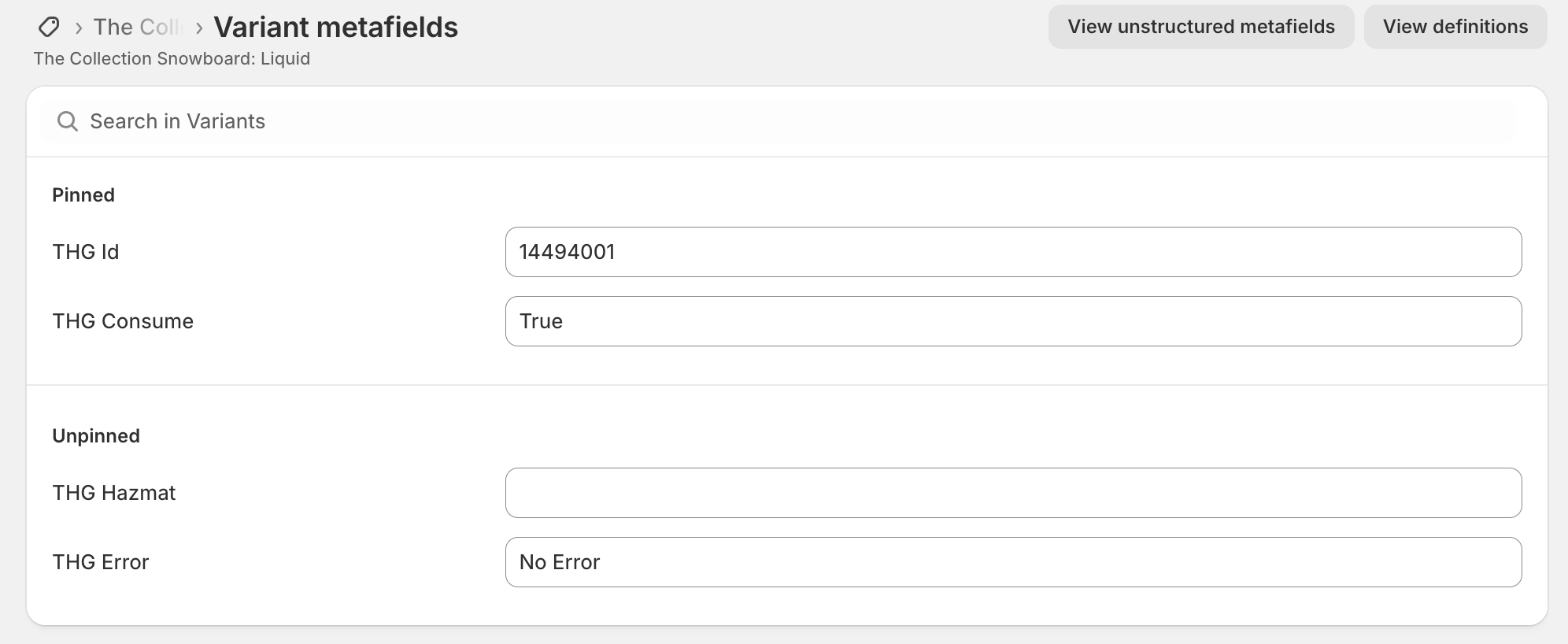
- Approved Products: Will have the
thg.idmetafield populated and receive athg-approvedtag
- Approved Products: Will have the
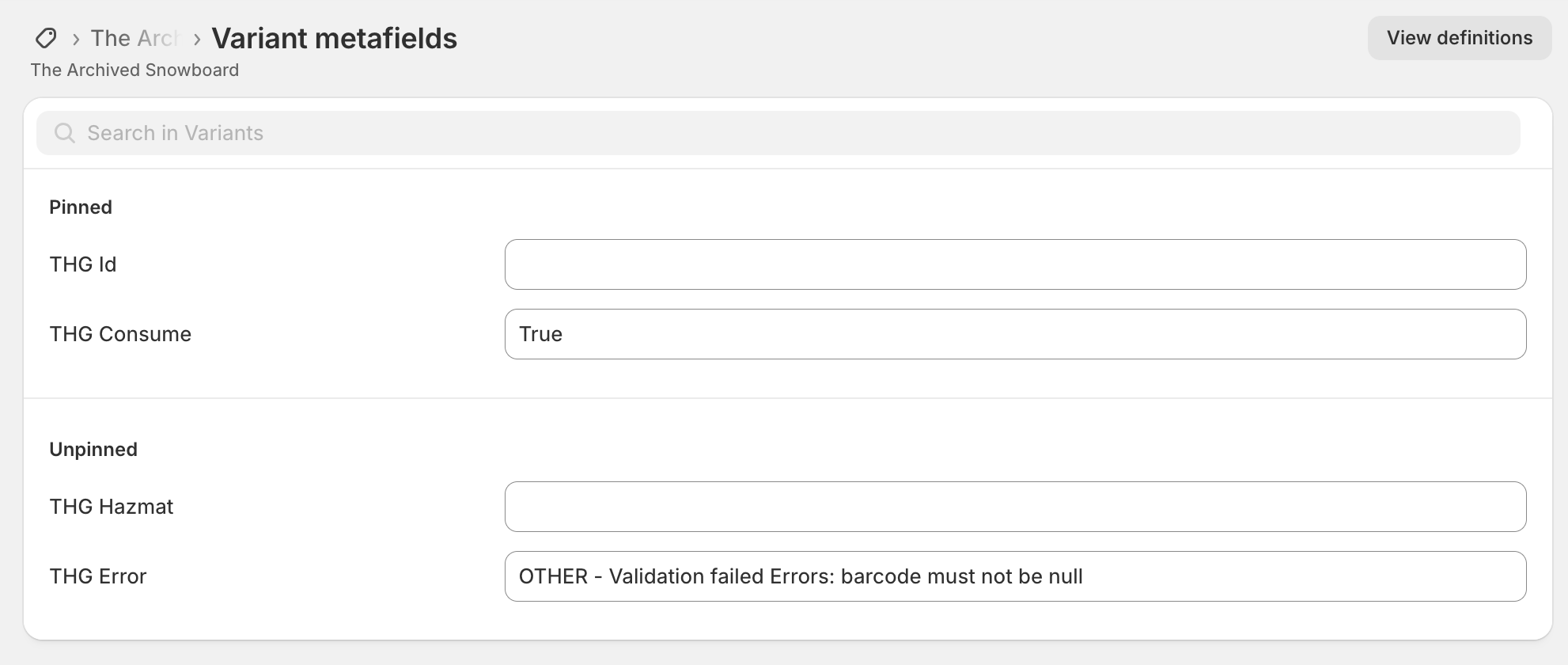
- Rejected Products: Will have the
thg.errorsmetafield populated with required changes and receive athg-rejectedtag
- Error Resolution: Use the product tags to filter and identify products requiring attention
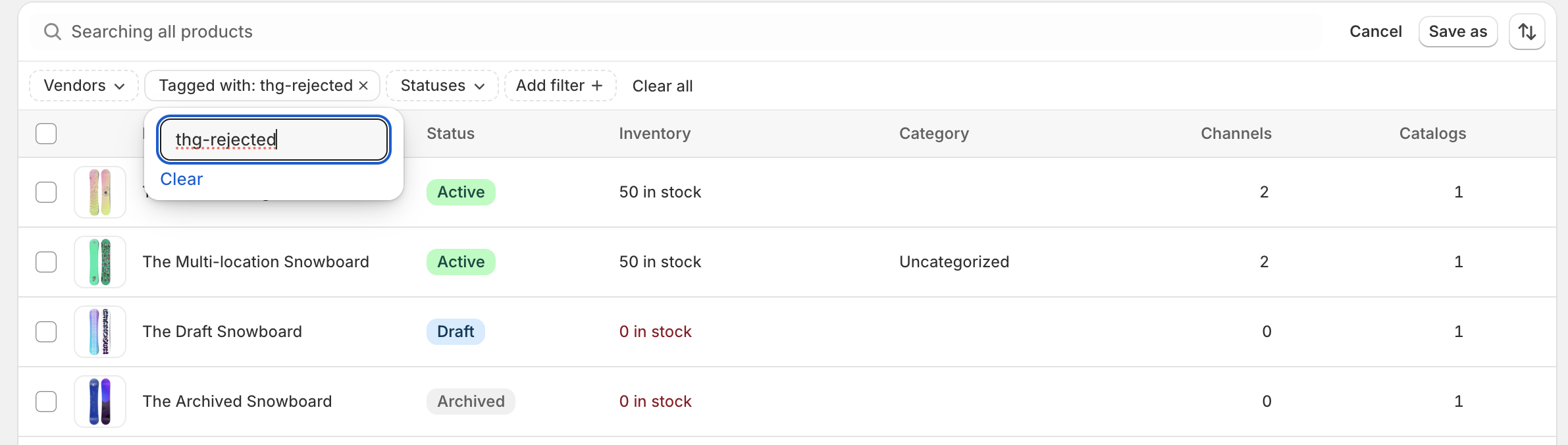
Important: Complete product setup before inbounding stock to the warehouse. Stock synchronization occurs automatically as inventory is received.
Order Processing Flow
Section titled “Order Processing Flow”Standard Order Flow
Section titled “Standard Order Flow”- Order Creation: Customer places an order in your Shopify store
- Order Routing: Shopify assigns the order to appropriate location(s) in unfulfilled state
- Fulfillment Request: Either automatic settings or workflows move the order to “requested” state
- THG Processing:
- THG Connect receives the fulfillment request
- Delivery type is set from your delivery options mapping
- Order is accepted if all requirements are met
- THG order ID is added to Shopify order notes for reference
- Rejected orders include detailed error messages for resolution
- Fulfillment: Once dispatched, THG Connect fulfills the order in Shopify with tracking information
Order Cancellations
Section titled “Order Cancellations”Shopify-Initiated Cancellations
Section titled “Shopify-Initiated Cancellations”- Request cancellation through Shopify interface
- THG Connect evaluates the cancellation request
- Accepted: Order is cancelled in both systems
- Rejected: Cancellation denied due to order status (e.g., already shipped)
THG-Initiated Cancellations
Section titled “THG-Initiated Cancellations”- Orders cancelled in THG Connect are automatically reflected in Shopify
- Customers receive appropriate notifications through Shopify’s standard processes